TV setup
Enable ADB debugging before using the Fire TV tools. Desktop IPTV playback works without a TV connection.
Developer mode and ADB debugging
Before running the installer, turn on Developer Mode and ADB debugging on the
TV itself. The exact menu names vary a little by Fire TV model and software
version. On a Fire TV Edition set (screenshots below), the path is Settings >
Device & Software:
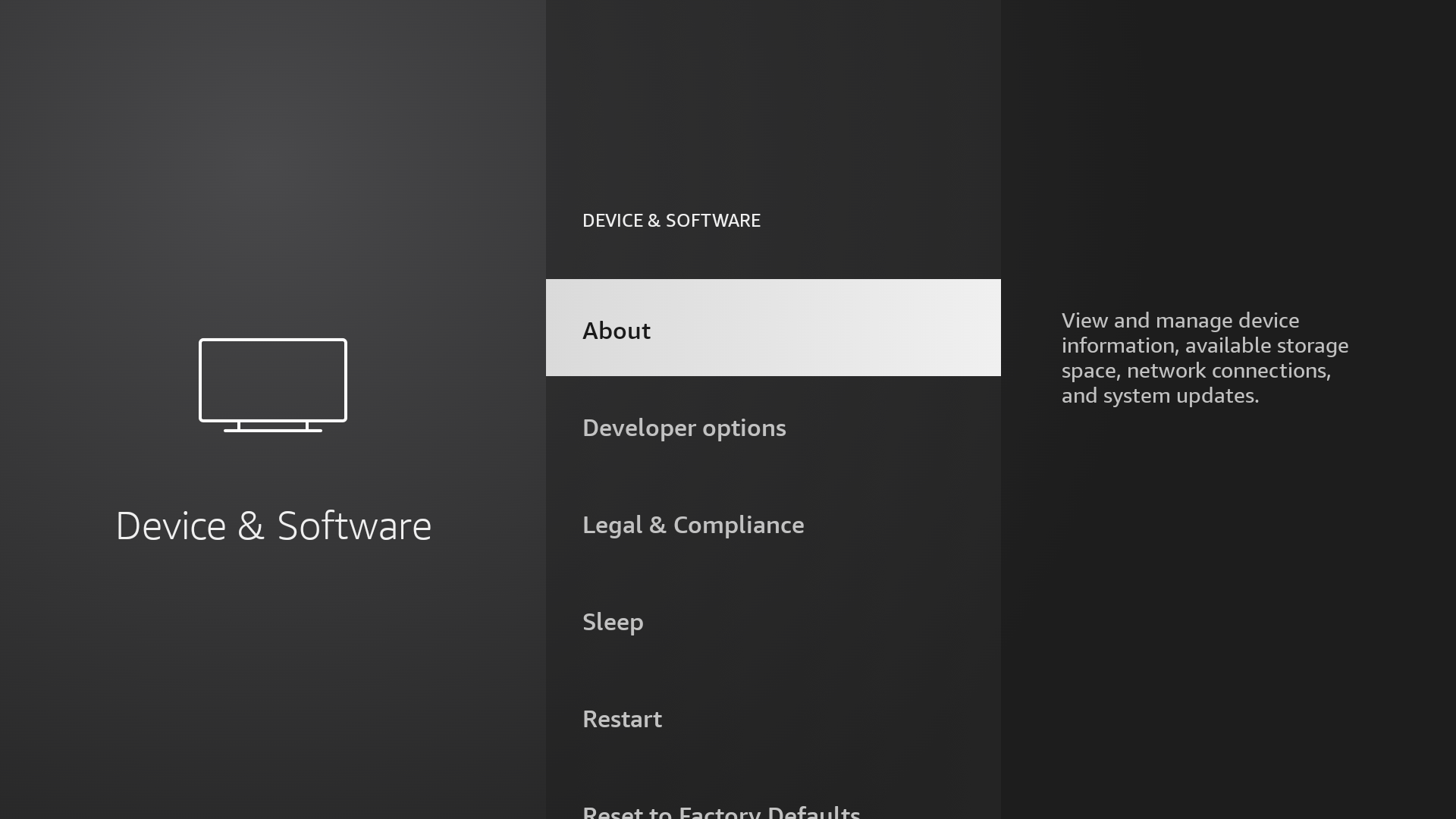
- Turn on Developer Mode: open
About, then select “Your TV” 7 times in a row until it says “You are now a developer!”
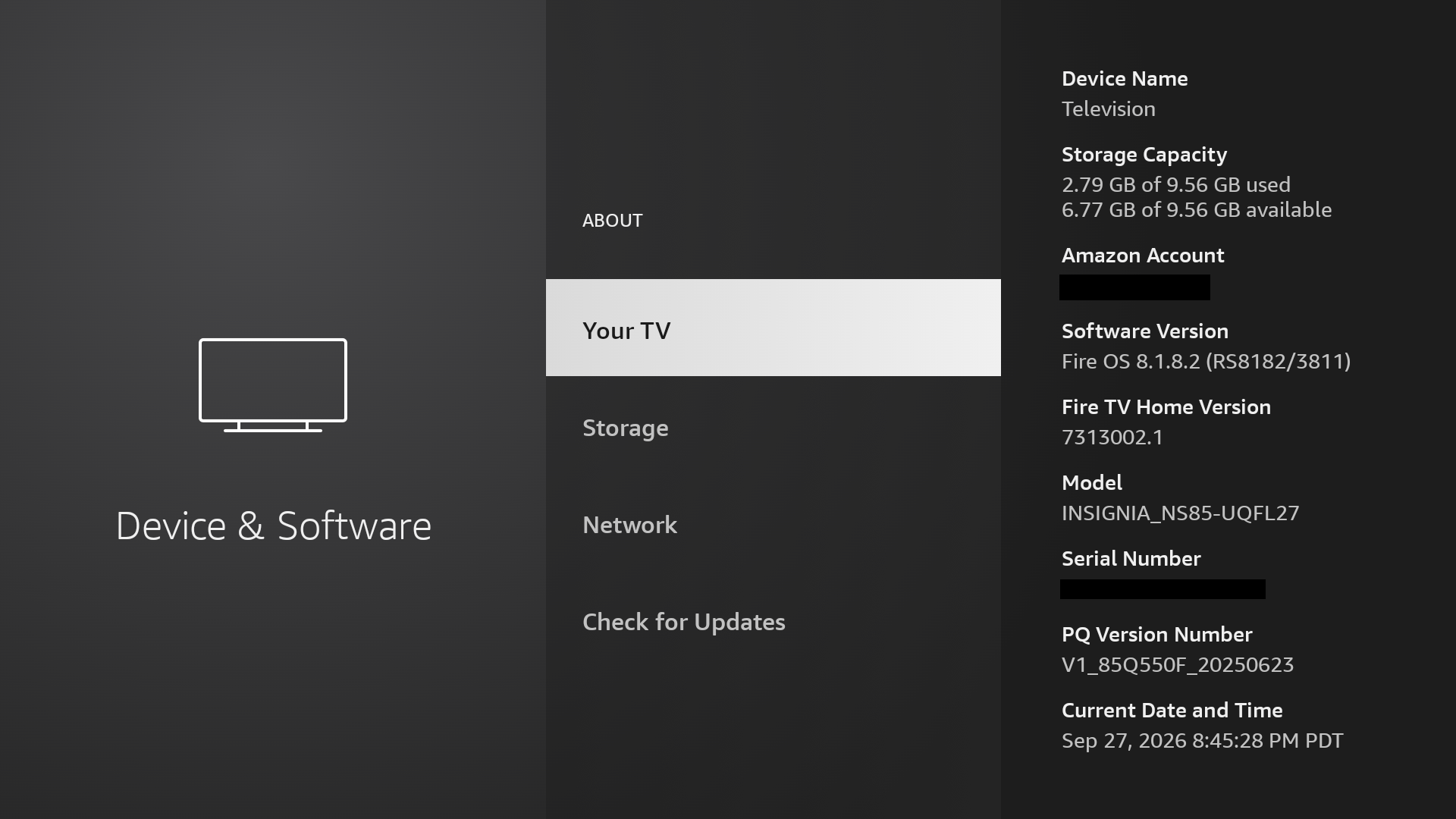
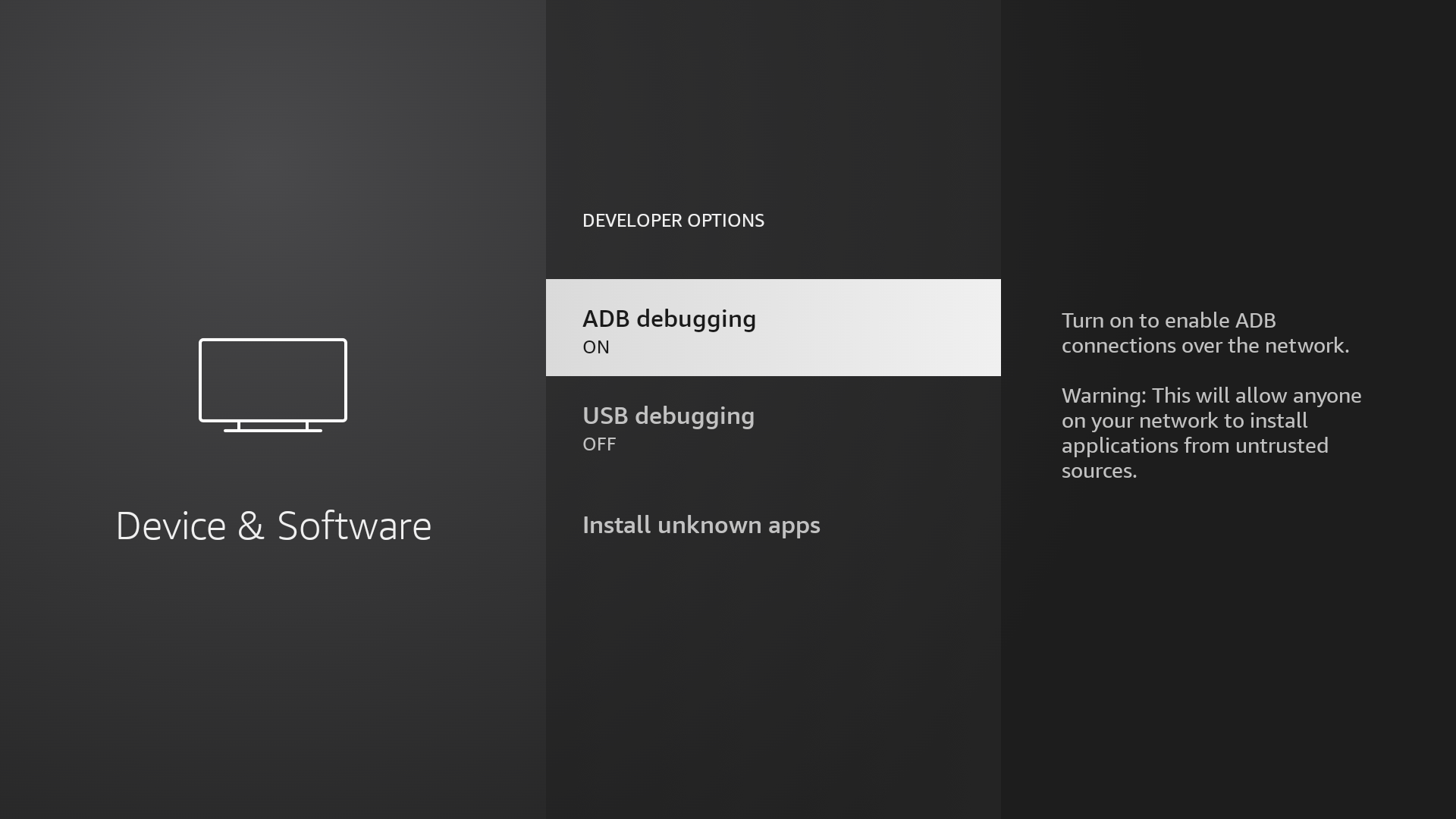
- Turn on ADB debugging: back out to
Device & Software, openDeveloper options, and turnADB debuggingon.
- Find your TV’s IP address: back in
About, openNetwork. Numbers below are blurred out, this is just to show where to look on your own TV.
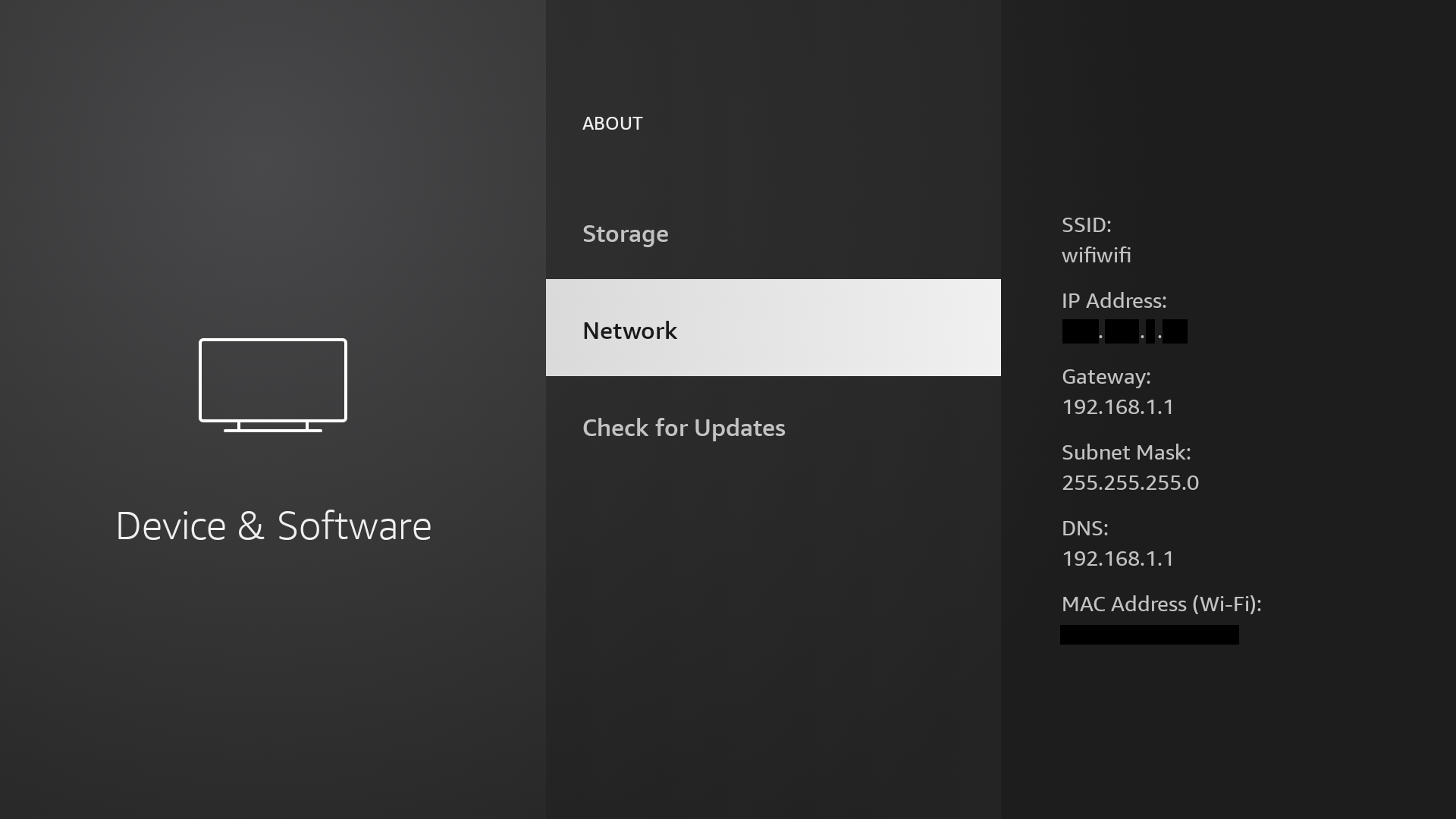
The installer asks you to confirm this and prompts for the IP address before doing anything else.
CLI installation
For the desktop app, download your operating system’s installer from Releases and follow the desktop guide. The installers are currently unsigned.
For the terminal CLI:
-
Clone the repo and run the setup script:
git clone https://github.com/jeremykenedy/fire-tv-toolkit.git cd fire-tv-toolkit node setup.js - Pick what to do on the checklist: install the dependencies and link every command onto your PATH, and launch the guided app. Nothing runs until you confirm.
- In the guided app, confirm developer mode is on and enter your TV’s IP address. It is saved to
.envso you are not asked again. - Choose what to set up: the Alexa fix, screensavers, timeouts, and optionally the AT4K or LTvLauncher home screen.
Run start any time to open the guided menu again. To install by hand instead: npm install, npm link, then start.
Upgrading the CLI
- Pull the latest code:
git pull. - Run
node setup.jsand choose to install and link the commands. - Run
startto pick up anything new, such as the AT4K or LTvLauncher home screen.
Your saved IP and timeout baselines in .env are kept. Coming from version 2
(amazon-fire-tv-fixes), the commands were renamed: remove the old links with
npm uninstall -g amazon-fire-tv-fixes before step 2. See the
Changelog for what changed.